> ## Documentation Index
> Fetch the complete documentation index at: https://docs.together.ai/llms.txt
> Use this file to discover all available pages before exploring further.
# Manage endpoints and deployments
> Create, update, and delete resources for dedicated model inference.
export const ConsoleButton = ({href, children}) => {
return
{children}
;
};
This page covers the lifecycle operations for dedicated model inference (DMI): creating endpoints and deployments, scaling, stopping, and deleting resources.
The CLI's `tg beta endpoints deploy` command bundles several API/SDK operations into one step for convenience: it creates the endpoint (when you pass a new endpoint name), attaches a deployment to it, and routes 100% of traffic to that deployment. The sections below show the individual operations underneath it.
To create your first deployment end-to-end, [follow the quickstart](/docs/dedicated-endpoints/quickstart).
You can run every operation on this page from the Together CLI and SDK or from the [web console](https://api.together.ai/endpoints). Each section below shows both: the CLI or SDK command, and the equivalent steps in the console.
## Create an endpoint
When you deploy a model to a new endpoint, Together creates the endpoint, attaches the deployment, and routes all traffic to it. (To create an endpoint resource with no deployments, use the [SDK or API](/reference/dmi/endpoints-create).)
Before you deploy, choose a [supported model](/docs/dedicated-endpoints/models) and a [deployment profile](/docs/dedicated-endpoints/configs).
Pass a model and a new endpoint name to `tg beta endpoints deploy`. It creates the endpoint, attaches a deployment on the model's default hardware, and routes 100% of traffic to it:
```bash CLI theme={null}
tg beta endpoints deploy google/gemma-4-E4B-it \
--endpoint my-endpoint
```
Add `--config ` when the model has more than one deployment profile, and `--min-replicas` / `--max-replicas` to set the [replica bounds](/docs/dedicated-endpoints/scaling#replica-bounds).
Endpoints
On the **Endpoints** page, select **New endpoint**.
Enter an **Endpoint name** and a **Deployment name**.
Select the **Model**. For a project or organization model, choose a **Revision**, then pick a **Deployment profiles** card and a **Region**. Each [deployment profile](/docs/dedicated-endpoints/concepts#deployment-profile) bundles the model's hardware, quantization, and speculative decoding when the config enables it. For project and organization models, the console offers every certified config with known hardware. Supported catalog models still require a profile-certified or org-runtime-certified config.
Set **Min replicas** and **Max replicas** (both default to `1`).
Select **Create endpoint**. Together creates the endpoint and its first deployment and routes all traffic to it.
The endpoint serves as a logical grouping of deployments, and the entry point for [routing traffic to your models](/docs/dedicated-endpoints/route-traffic).
## Create a deployment
Add more deployments to an endpoint to run several models or hardware configs behind it, for [traffic splitting](/docs/dedicated-endpoints/split-traffic), [A/B tests](/docs/dedicated-endpoints/ab-tests), or [shadow experiments](/docs/dedicated-endpoints/shadow-experiments). It works like [creating an endpoint](#create-an-endpoint), except you target an existing endpoint and give the deployment a traffic weight so it takes a share of the [traffic split](/docs/dedicated-endpoints/route-traffic).
Pass an existing endpoint ID (or a new endpoint name) to `tg beta endpoints deploy --endpoint` to add a deployment. The model is the positional argument, and the config is `--config`:
```bash CLI theme={null}
tg beta endpoints deploy ml_CbJNwQC2ZqCU2iFT3mrCh \
--endpoint ep_abc123 \
--deployment-name my-deployment \
--config cr_CbzGdmn14t3HYrXXitmKa \
--min-replicas 1 --max-replicas 2
```
When a model has more than one [deployment profile](/docs/dedicated-endpoints/concepts#deployment-profile), `deploy` returns an error that lists the available profiles, for example:
```text theme={null}
Model has multiple deployment profiles. Re-run with --config :
cr_CbzGdmn14t3HYrXXitmKa NVIDIA-H100 x1 BF16 TP1
cr_CciJqTB35QmpMupbQNPPW NVIDIA-H100 x1 FP8 TP1
```
Re-run with `--config ` to choose one. When a model has a single profile, the CLI selects it automatically. List a model's profiles anytime with `tg beta models configs `.
The CLI defaults `--min-replicas` and `--max-replicas` to `1`, so a bare `deploy` creates a single-replica deployment. If you pass only `--min-replicas`, the max matches it. `--min-replicas 0` alone creates the deployment stopped.
For the full flag list, including placement, the autoscaling windows, and the scaling percentile, see the [CLI reference](/reference/cli/endpoints-beta#deploy).
Endpoints
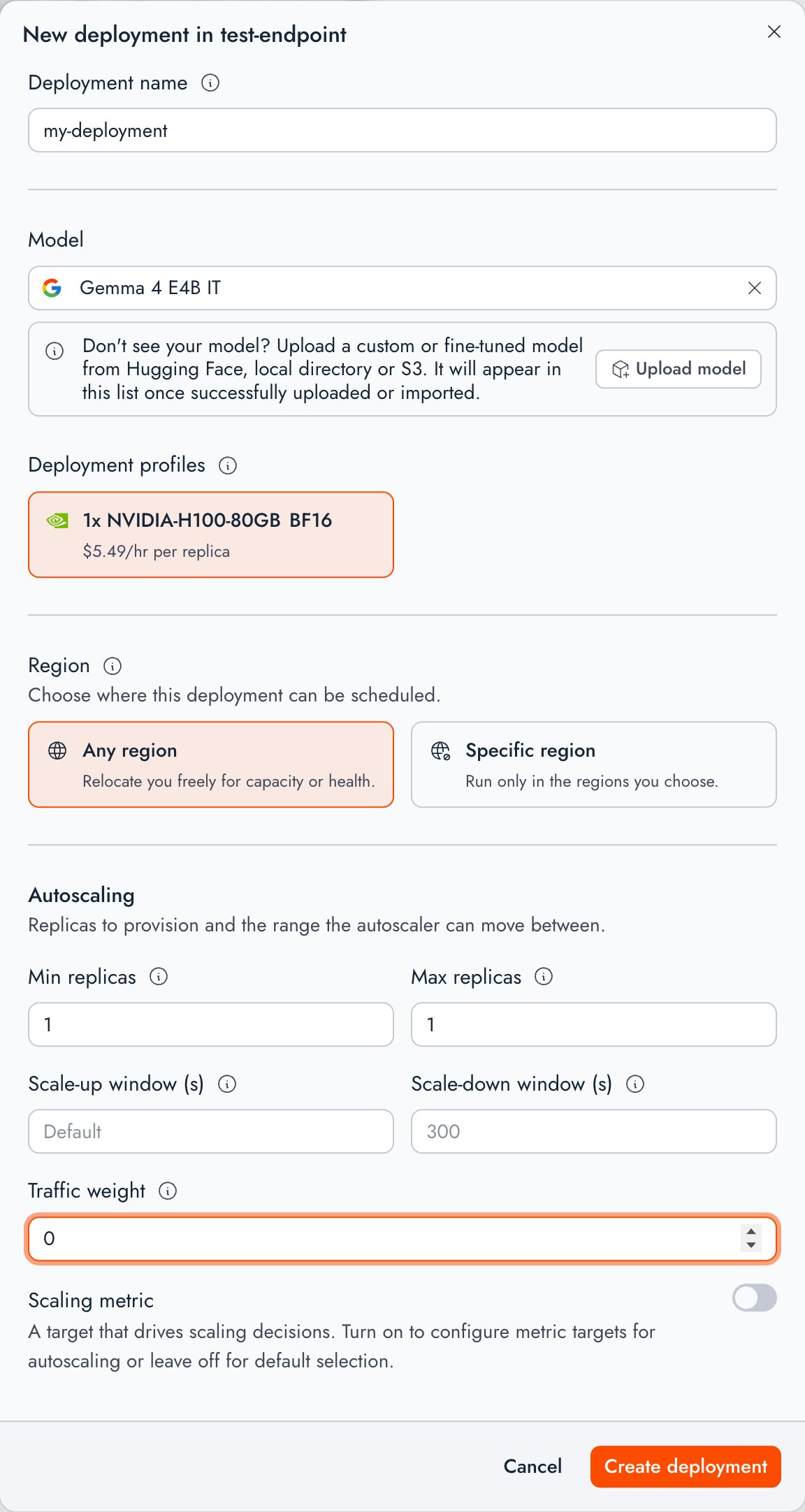
Open the endpoint and select **New deployment**. The dialog has the same fields as the create form ([Create an endpoint](#create-an-endpoint)), plus a **Traffic weight**: leave it at `0` to add the deployment without serving live traffic (for example, as an [A/B](/docs/dedicated-endpoints/ab-tests) variant). Fill in the fields and select **Create deployment**. While a [rollout](/docs/dedicated-endpoints/rollouts) is active (including pending or paused), **Traffic weight** is disabled so the rollout keeps ownership of the split.
After you've created a deployment, you'll need to [route traffic](/docs/dedicated-endpoints/route-traffic) to it before it can serve requests.
### Placement profiles
Choose a placement profile to restrict which regions your deployment can run in. Placement can't be changed on an existing deployment, so set it when you deploy. You have two options:
* **Attach a profile:** Pass `--placement ` with a placement profile ID. A placement profile is a reusable, Together-managed list of preferred regions that you attach instead of repeating the same region list on every deploy.
* **Set placement inline:** Pass `--placement.regions` with a comma-separated region list, and `--placement.constraint` (`required` or `preferred`) to control how strictly Together enforces it.
Together creates and manages the list of placement profiles, so they are read-only. To see the profiles available to your project, along with their IDs and preferred regions, use the [placement profiles API](/reference/dmi/placement-profiles-list). The regions you can pass inline depend on the clusters available to your project, so a profile's preferred regions are a useful reference for valid region names.
#### Compliance policy
To run replicas only on HIPAA-attested clusters, pass `--placement.hipaa` when you deploy. The policy is always enforced strictly, regardless of `--placement.constraint`. If no qualifying cluster is available, the deployment stays unscheduled.
```bash CLI theme={null}
tg beta endpoints deploy zai-org/GLM-5.2 \
--endpoint hipaa-ready \
--placement.regions us-east-1 \
--placement.constraint preferred \
--placement.hipaa
```
In the API and SDKs, the same policy is the `compliancePolicy` object on inline placement, for example `"compliancePolicy": {"hipaa": true}`. See the [create deployment API](/reference/dmi/deployments-create).
## Poll deployment status
To check a deployment's status, run `tg beta endpoints get` on its endpoint name or ID. The output lists up to the 10 newest deployments' `state` and ready/desired replica counts, so re-run it to watch a specific deployment come up:
```bash CLI theme={null}
# Show the endpoint with each deployment's state and replica counts
tg beta endpoints get my-endpoint
tg beta endpoints get ep_abc123
```
For the full set of status fields (scheduled replicas, status message), run `get` on the deployment itself with `--json` and read `status`:
```bash CLI theme={null}
tg beta endpoints get dep_abc123 --json
```
Endpoints
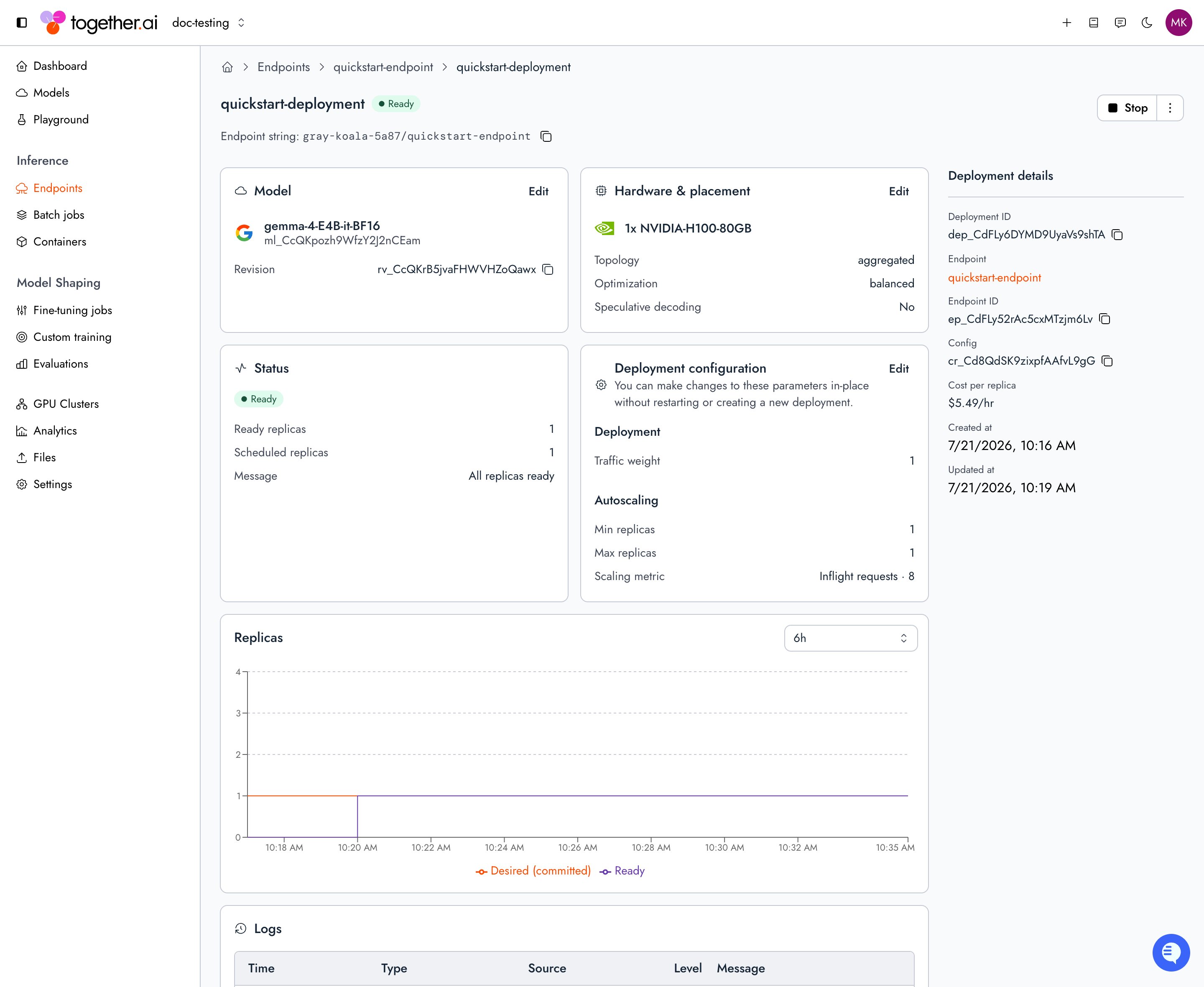
Open your endpoint, then open the deployment from the endpoint's **Overview** tab to watch its status live. The **Status** card shows the current state (for example, Ready), the ready and scheduled replica counts, and a status message, and the **Replicas** chart plots desired versus ready replicas over time.
The status object exposes these fields:
| Field | Description |
| - | - |
| `desiredReplicas` | Target replica count from autoscaling. |
| `status.scheduledReplicas` | Replicas the scheduler has placed on clusters. May trail `desiredReplicas` while capacity is still being found, and exceed `status.readyReplicas` while placed replicas start. |
| `status.readyReplicas` | Replicas actively serving traffic. |
| `status.message` | Human-readable explanation of the current stage or cause. Replica progress lives in the counts above, not in this string. |
| `status.state` | [See below](#deployment-states). |
### Deployment states
A deployment reports its lifecycle in `status.state`. The API returns the fully-qualified enum (for example `DEPLOYMENT_STATE_READY`). This page uses the short name for readability.
| State | Description |
| - | - |
| **`PROVISIONING`** | The scheduler is placing replicas on clusters. `status.message` is `Scheduling replicas`. |
| **`SCALING`** | Replicas are starting or draining to reach the desired count. `status.message` is `Starting replicas` or `Scaling down`. |
| **`READY`** | All replicas are healthy and serving. `status.message` is `All replicas ready`. A deployment must also be in the endpoint's [traffic split](/docs/dedicated-endpoints/route-traffic) to receive requests. |
| **`DEGRADED`** | The deployment is below the requested capacity or blocked by a transient issue. `status.message` explains the cause. It usually resolves on its own. |
| **`STOPPING`** | A transient teardown state. Replicas are draining after a stop was requested. It settles to `STOPPED` once cleanup completes, or to `FAILED` if teardown ends with a failure. |
| **`STOPPED`** | Scaled to zero replicas. The deployment isn't billing and isn't serving. |
| **`FAILED`** | Terminal state. The `status.message` field explains why. |
A deployment that never reaches `READY` within six hours after starting will be marked as `FAILED`.
## Scale a deployment
Deployment scale is controlled by the deployment's [replica bounds](/docs/dedicated-endpoints/scaling#replica-bounds), and optionally autoscaled using [scaling metrics](/docs/dedicated-endpoints/scaling#scaling-metrics). Set the initial bounds when you create the deployment, then change them on a running deployment.
```bash CLI theme={null}
tg beta endpoints update dep_abc123 --min-replicas 2 --max-replicas 4
```
Endpoints
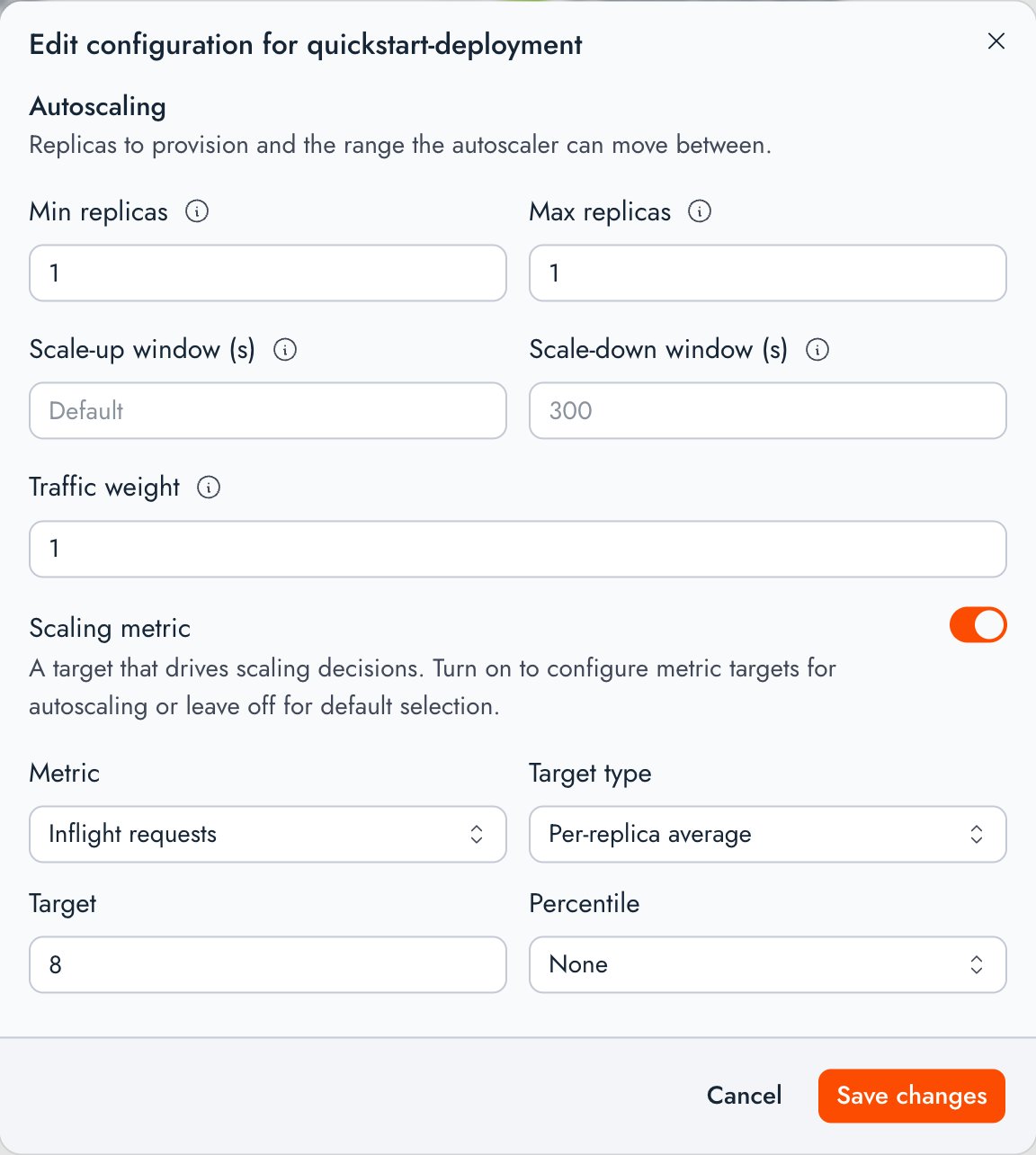
On the deployment's detail page, select **Edit** on the **Deployment configuration** card. Change **Min replicas** and **Max replicas** (and, optionally, the **Scaling metric** or **Traffic weight**), then select **Save changes**. The console applies the change in place, without restarting the deployment or creating a new one. While a [rollout](/docs/dedicated-endpoints/rollouts) is active (including pending or paused), **Traffic weight** is disabled; complete or cancel the rollout before editing weights manually.
## Stop a deployment
A deployment runs until you stop it. Stopping scales it to zero replicas and releases its hardware. To stop a deployment automatically when it goes unused, set an [inactivity timeout](/docs/dedicated-endpoints/scaling#automatic-idle-shutdown) instead.
Pass both `--min-replicas 0` and `--max-replicas 0`. The CLI rejects a stop request that sets only one bound to zero:
```bash CLI theme={null}
tg beta endpoints update dep_abc123 --min-replicas 0 --max-replicas 0
```
Endpoints
On the deployment's detail page, select **Stop**. Stopping scales the deployment to zero without deleting it, so you can start it again later. If the deployment is the source or target of an active [rollout](/docs/dedicated-endpoints/rollouts), **Stop** is disabled until you complete or cancel the rollout. On the endpoint, **Stop all deployments** is also disabled while any rollout is active.
The replicas keep serving until they finish draining, then the deployment moves to `DEPLOYMENT_STATE_STOPPED` and billing stops.
## Restart a deployment
A stopped deployment doesn't restart on its own. Only deployments in `DEPLOYMENT_STATE_STOPPED` can be restarted. A deployment in `FAILED` is terminal and can't be brought back this way. [Deploy a new deployment](#create-a-deployment) instead. To restart a stopped deployment, raise both bounds to `1` or more.
```bash CLI theme={null}
tg beta endpoints update dep_abc123 --min-replicas 1 --max-replicas 2
```
Endpoints
On the deployment's detail page, select **Start**, then confirm the **Min replicas** and **Max replicas** to bring it back with.
## List resources
List and get endpoints with the CLI:
```bash CLI theme={null}
# All endpoints in the project
tg beta endpoints ls
# One endpoint by name or ID (includes up to the 10 newest deployments' state and replica counts)
tg beta endpoints get my-endpoint
tg beta endpoints get ep_abc123
```
Endpoints
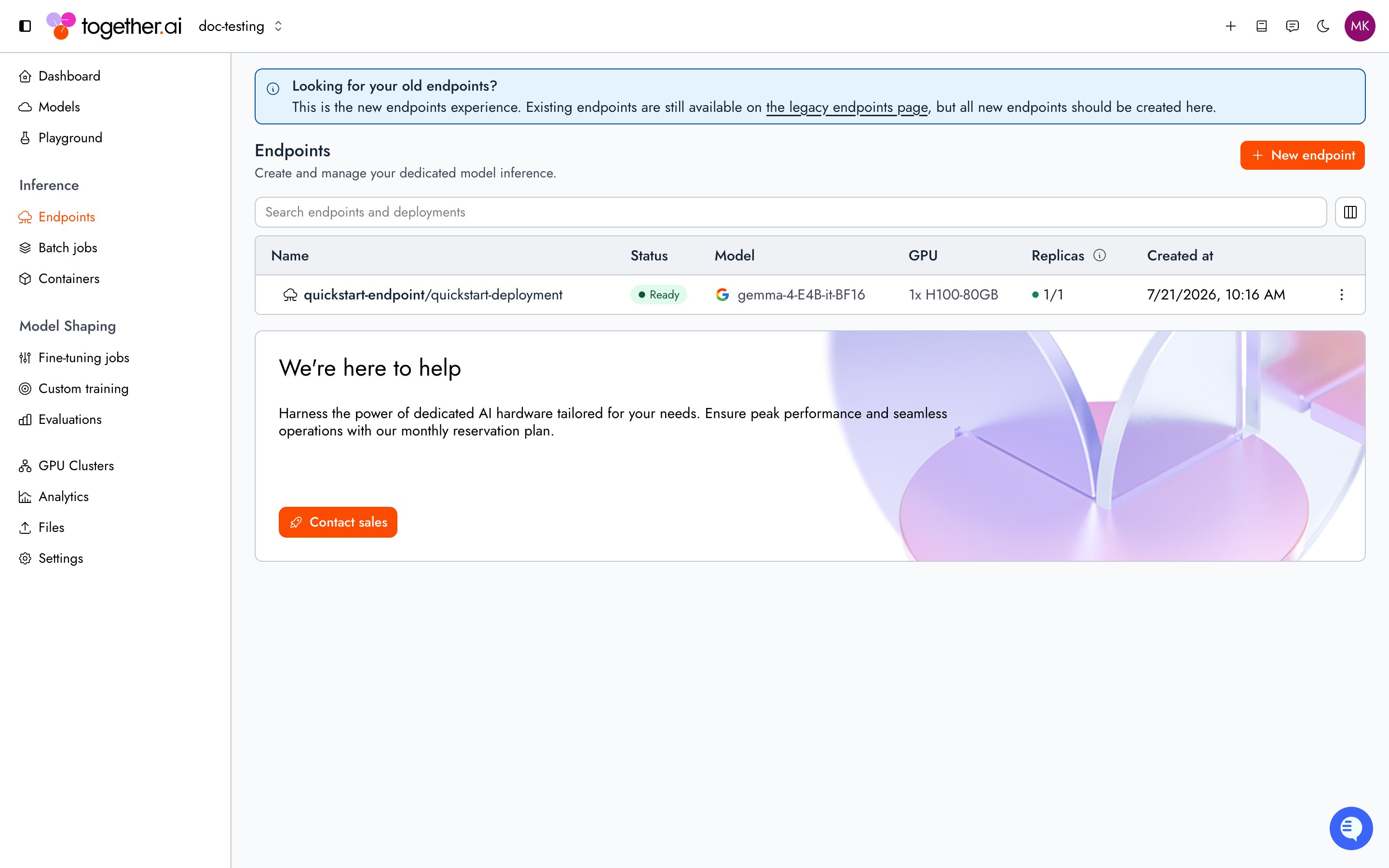
The **Endpoints** page lists every endpoint in the current project with its status, model, GPU, and ready/desired replica counts. Single-deployment endpoints collapse into one row; endpoints with more than one deployment expand to show each deployment.
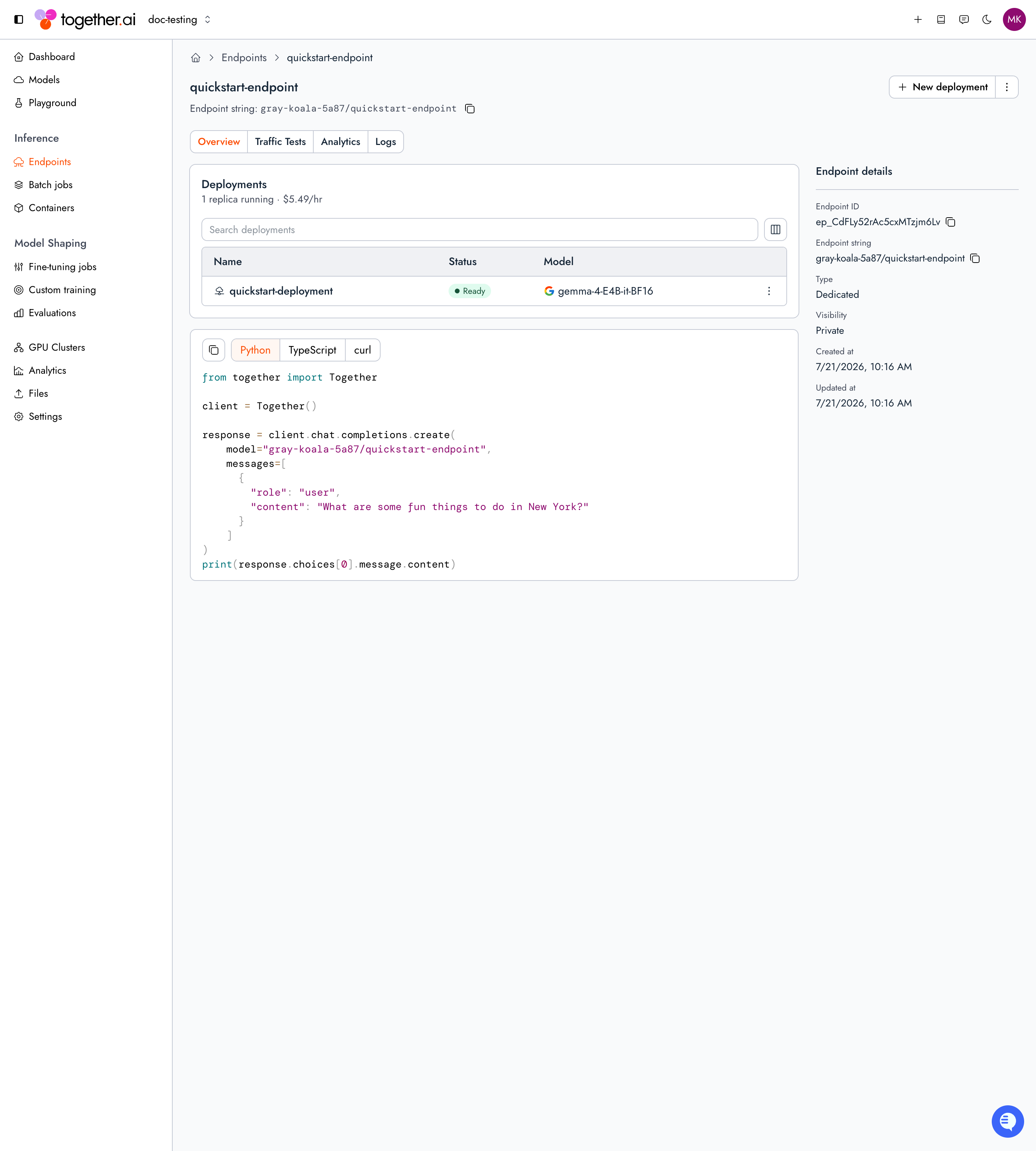
Select an endpoint to open its detail page. The **Overview** tab opens with a status card for the endpoint's serving state (live, starting, or offline), lists its deployments, and shows the endpoint's details and a ready-to-run code sample. When the endpoint is live and serving traffic, the status card shows the traffic split and an **Edit traffic weights** action.
Endpoint get and list responses embed lightweight deployment summaries in each endpoint's `deployments` array. The array includes at most the 10 newest deployments per endpoint (ordered by `createdAt`, descending). To list every deployment on an endpoint, use the [SDK or API](/reference/dmi/deployments-list).
Same-project get, update, and list responses also include `activeRolloutId` when a [rollout](/docs/dedicated-endpoints/rollouts) is in flight (including paused). The field is omitted when there is no active rollout, on cross-project reads, and in organization or public catalog lists.
### List flags
`tg beta endpoints ls` accepts these flags:
| Flag | Description |
| - | - |
| `--limit` | Maximum number of endpoints to return. |
| `--after` | Pagination cursor to start from. |
| `--org` | List org-scoped endpoints instead of project-scoped ones. |
| `--public` | List public endpoints. |
List responses are paginated: when more results are available, the response includes `next_cursor`, which you pass as `--after` on the next request.
## Delete resources
Deletion is permanent. A deployment must be stopped before it can be deleted. Follow this order:
1. [Scale the deployment to zero](#stop-a-deployment) and wait for `DEPLOYMENT_STATE_STOPPED`.
2. Delete the deployment. If you use the SDK or API (not the CLI), set the deployment's [traffic split](/docs/dedicated-endpoints/route-traffic) weight to 0 on the endpoint first.
3. Delete the endpoint once it has no deployments.
The CLI's `rm` command is a smart-delete: it resolves the resource by its ID prefix, so the same command deletes an endpoint (`ep_`), a deployment (`dep_`), an A/B experiment (`abx_`), a shadow experiment (`exp_`), or a rollout (`rol_`). When you run `tg beta endpoints rm dep_...`, the CLI automatically detaches the deployment from the traffic split and from any experiments it belongs to:
```bash CLI theme={null}
# Delete the deployment (must be stopped first; auto-detaches from the traffic split)
tg beta endpoints rm dep_abc123
# Delete the endpoint once it has no deployments
tg beta endpoints rm ep_abc123
```
To delete an endpoint that still has deployments, pass `--force` to `rm`. If the endpoint has other deployments you want to keep, rebalance the remaining weights instead of clearing the split. See [Route traffic](/docs/dedicated-endpoints/route-traffic).
Endpoints
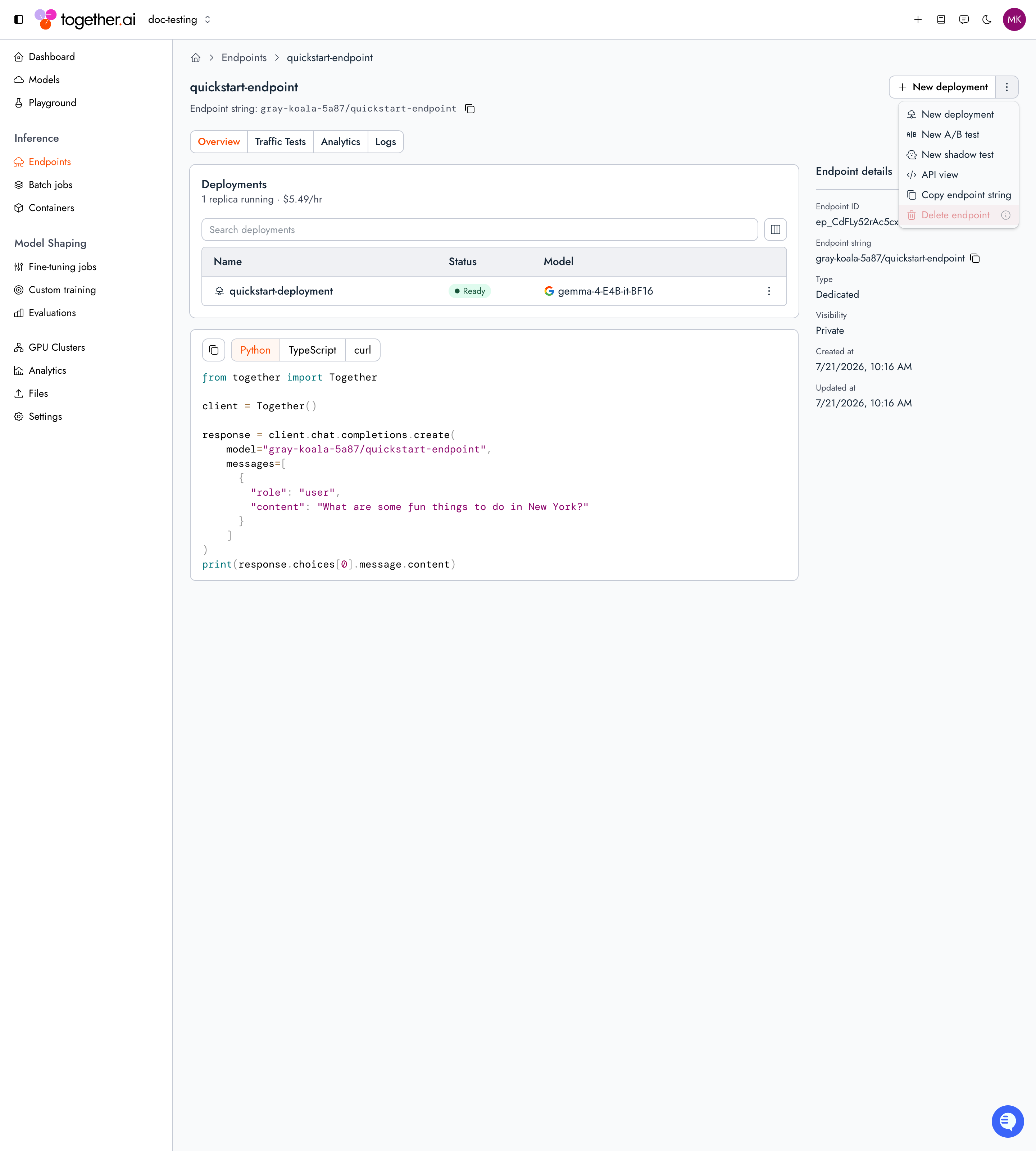
First [stop](#stop-a-deployment) every deployment under the endpoint. Then open the endpoint, select **Endpoint actions**, and select **Delete endpoint**. The console keeps **Delete endpoint** disabled until every deployment is stopped or deleted, so there's no console equivalent of the CLI's `rm --force` on a running endpoint.
## Troubleshooting
* **`unknown field "..."` (HTTP 400) on a management API request:** The JSON body or query string includes a key the API does not define. Remove the named field (including retired keys such as `inactive_timeout`) and retry. Known fields accept both camelCase and snake\_case spellings.
* **`endpoint_not_configured` (HTTP 400) though the deployment is `READY`:** Confirm the deployment is in the endpoint's [traffic split](/docs/dedicated-endpoints/route-traffic) with a non-zero weight.
* **Deployment `DEGRADED` with `Cannot place replicas: insufficient GPU capacity`:** Hardware for the config is constrained, so the scheduler couldn't place all replicas yet. Compare `status.scheduledReplicas` to `desiredReplicas`. The scheduler keeps retrying and the deployment starts once capacity frees up. To improve the chance of placement, request fewer replicas or choose a config with a smaller hardware footprint.
* **Deployment `DEGRADED` with `Startup stalled` or `Not ready`:** A placed replica is still booting or hit a startup failure. Read the detail after the colon in `status.message`. The deployment stays `DEGRADED` rather than `FAILED` once any replica has been successfully started.
* **Deployment `FAILED` with `Timed out waiting for readiness`:** No replica could be provisioned within six hours of the current run's start. Read the stall cause at the end of `status.message`. [Deploy a new deployment](#create-a-deployment) to try again with a fresh readiness budget.
* **Restart fails with `the deployment is in a terminal FAILED state and cannot be restarted; create a new deployment` (HTTP 400):** A `FAILED` deployment can't be brought back by raising replica bounds. [Deploy a new deployment](#create-a-deployment) on the endpoint instead.
* **Restart fails with `the deployment must be stopped before it can be restarted` (HTTP 400):** Wait for the deployment to reach `DEPLOYMENT_STATE_STOPPED` after you [stop it](#stop-a-deployment), or confirm both replica bounds are `0`, before raising them again.
* **Deployment `FAILED` for another reason:** Read `status.message`. Common causes include deterministic placement rejection (`Cannot place replicas: …`), manifest generation failure, or remediation exhaustion.
* **Model not supported:** Not every model can be deployed. See the [model catalog](/docs/dedicated-endpoints/models). A fine-tuned model deploys only if its base model is supported.
* **Deploy fails with `the model has no revisions to deploy`:** The model record exists but has no uploaded weights yet. Finish [uploading the model](/docs/dedicated-endpoints/custom-models#upload-the-model) and wait for the upload to succeed before you deploy it.
* **Deploy fails with a revision validation error:** When you pin a specific model or speculator revision, that revision must have passed validation first. Check `validationStatus` on the revision ([custom models](/docs/dedicated-endpoints/custom-models#check-revision-validation), [adapters](/docs/dedicated-endpoints/adapter#check-revision-validation)). Deploy the latest validated revision, or wait for the pinned revision to finish validating.
* **Deploy or update fails with `GPU quota exceeded` (HTTP 429):** The request would put your project or organization over its per-GPU-type quota. The error message names the GPU type and the would-be total against the limit (for example, `this deployment would put your project at 116 of 100 H100 GPUs`). Lower the requested replica count, stop unused deployments on that GPU type, or [contact support](https://www.together.ai/contact) to raise the limit. When the platform itself is out of capacity for a GPU type (`GPU quota exceeded for H100`), retry later or contact support to request capacity.
* **Deployment delete fails with `the deployment stands in an endpoint's traffic split and cannot be deleted; remove it from the traffic split (it may be standing at weight 0), then delete` (HTTP 400):** The deployment is still a member of the endpoint's [traffic split](/docs/dedicated-endpoints/route-traffic), including after a completed [rollout](/docs/dedicated-endpoints/rollouts) that left the drained source at weight `0`. Remove it from the split before deleting. The CLI's `tg beta endpoints rm dep_...` detaches it automatically.
* **Deployment delete fails with `the deployment is an A/B experiment member; remove it from the experiment first` (HTTP 400):** The deployment is still a control or variant in an [A/B test](/docs/dedicated-endpoints/ab-tests). Remove it from the test (or delete the test) before deleting the deployment. The CLI's `tg beta endpoints rm dep_...` detaches it automatically.
* **Stop or delete is disabled on a deployment in the console:** The deployment is the source or target of an active [rollout](/docs/dedicated-endpoints/rollouts). Complete or cancel the rollout first.
## Next steps
Autoscale a deployment on the right metric.
Split traffic across deployments behind one endpoint.
Monitor metrics and scrape the Prometheus-compatible endpoint.
Understand per-minute and reserved pricing.
This documentation is built and hosted on [Mintlify](https://mintlify.com), a developer documentation platform.
 Select an endpoint to open its detail page. The **Overview** tab opens with a status card for the endpoint's serving state (live, starting, or offline), lists its deployments, and shows the endpoint's details and a ready-to-run code sample. When the endpoint is live and serving traffic, the status card shows the traffic split and an **Edit traffic weights** action.